

Disclaimer: Some of the tools mentioned in this post are affiliate links. This means I may earn a small commission if you purchase through these links, at no extra cost to you.
I’m sure you’ve heard of WordPress.com by now, but have you tried WooCommerce?
At first glance, it sounds like a tool made only for retail stores (commerce), right? But in 2026, you may be surprised to know, WooCommerce has become one of the most flexible ways for content creators to monetize their websites. How? By selling digital products, subscriptions, and online courses – not just physical goods like T-shirts.
In this guide, I’ll show you how WordPress.com and WooCommerce work together to help digital creators like me and you build a stable, long-term digital foundation in the new year. Because 2026 is the year we stop relying on third-party platforms and fragile social media algorithms and start owning our presence.
Why Do Creators Need an Online Store in 2026?
If you’re a content creator who mainly relies on social platforms like Instagram, Pinterest or TikTok to promote your brand, hate to break it to you, but you are living on rented land. It’s just a matter of time; these platforms will one day get regulated by the government and you’ll wake up with your account blocked or restricted. This actually happened to me on Instagram, not once, but TWICE.
And at that time, the only thing that saved me, and helped me keep getting writing projects was having a small WordPress.com blog presence.
Personal story aside, I’m trying to warn you that if this happened to me, it can happen to anyone.
You need an online presence you can fully control
A website with an in-built online store gives you full control over your content, services, payments, and audience in the long-term. You’re also simplifying your workflow to just one unified dashboard for easy management.
1 Platform = Website + Content + Service/Product + Monetization
Okay, now that you understand the need for owning a website, you may be asking: “What is WooCommerce and how can it help me?”
What is WooCommerce?
Warning: I’m not a technical person, but I’ll try my best to explain this as plainly as possible.
WooCommerce is a tool that runs on WordPress.com and lets you turn your website into a fully optimized online store. Think of it like an e-commerce shop you can run from your laptop, but without needing to install third-party software or navigate it using a separate platform.
WooCommerce allows content creators to:
- Sell digital downloads like ebooks, templates, guides
- Offer online courses or workshops directly on your site
- Create memberships or paid communities for your fans or subscribers
- Sell physical products, if you want to expand later
- Accept various payments methods safely from Stripe, PayPal, or other options
For writers and content creators like us, the best part is: everything is stored in one place.
This means that your blog, your store, your products, and payments are all managed from your WordPress.com dashboard. Now you don’t have to jump between multiple apps, tabs, or get lost in complicated workflows.
WooCommerce runs seamlessly on WordPress.com and it’s simple to use, even if you’ve even if you’ve never sold anything online before.
In this next section, I’ll show you how to get it set up.
How to Launch an Online Store in 2026 (WordPress.com + WooCommerce Step-by-Step)
Step 1: Set up your WordPress.com site
If you don’t already have a website, start here:
Create a new WordPress.com account and choose a plan that supports WooCommerce. This plan gives you hosting, security, updates, and maintenance in one place.
Next, you should spend some time choosing a theme.
- Tip: As a beginner, I recommend you choose a clean and simple website theme. You don’t need anything too complex or flashy. This way, your content and products will be easy to find and easy to read. And you can always change your theme later on. It’s super easy.
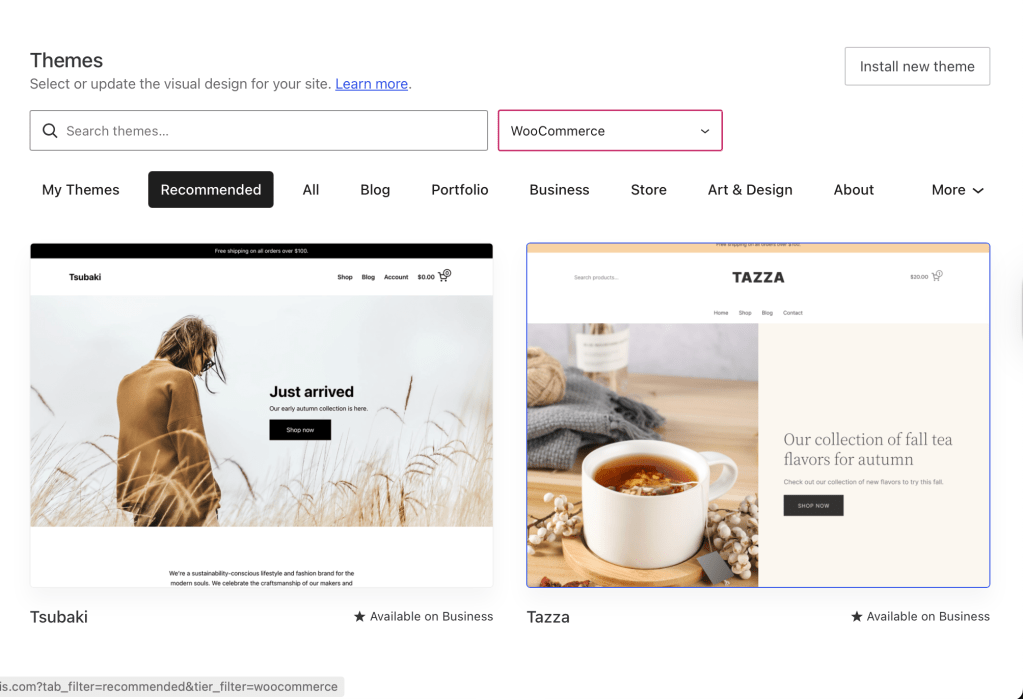
Here are some examples of WordPress themes that integrate with WooCommerce features:
- Tsubaki
- Tazza
You can click on them and preview a demo before activating the theme.
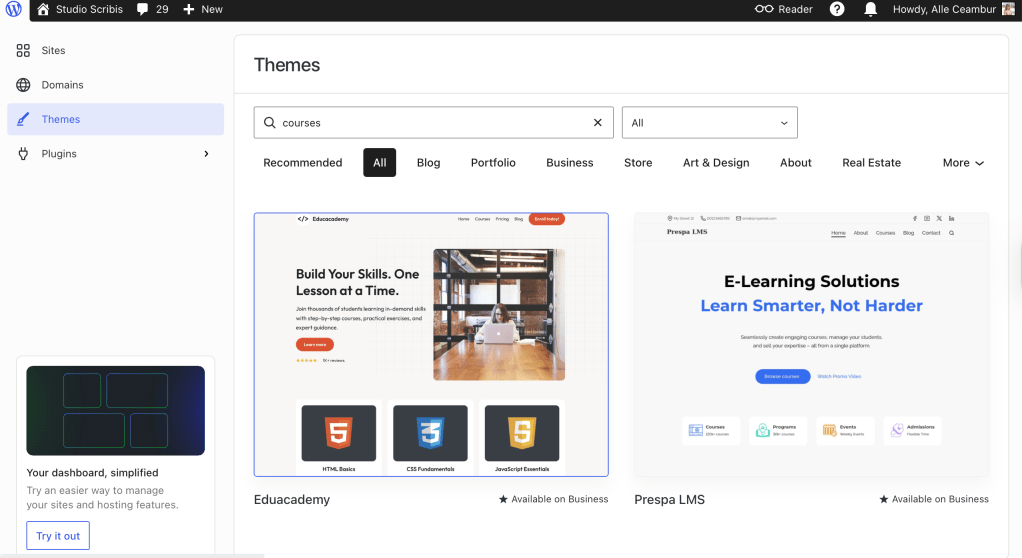
You can also filter themes by a specific category, like these ones I found searching for online courses:
Instructions: Follow this step-by-step guide for starting a new WordPress.com site.
Step 2: Install WooCommerce
From your WordPress.com dashboard, you can install the WooCommerce plugin. Note: The plug-in is free to install, but you need to have an active plan that supports it (eg: Business Plan), which may require an upgrade.
Here’s how to install WooCommerce:
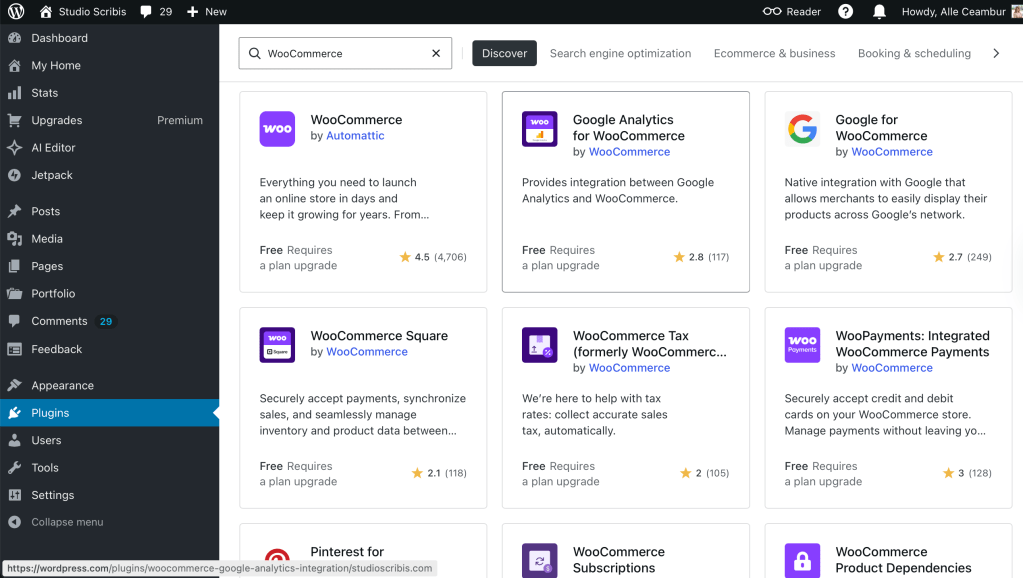
- Scroll down to Plugins
- Type WooCommerce in the search bar
- Click on WooCommerce by Automattic
- Download and activate it
- Follow the steps in the setup wizard to customize your store location, payment currency, and product types (digital, physical, or both)
Here’s a visual guide to help you find the WooCommerce (by Automattic) plugin:
This step only takes a few minutes and doesn’t require technical knowledge.
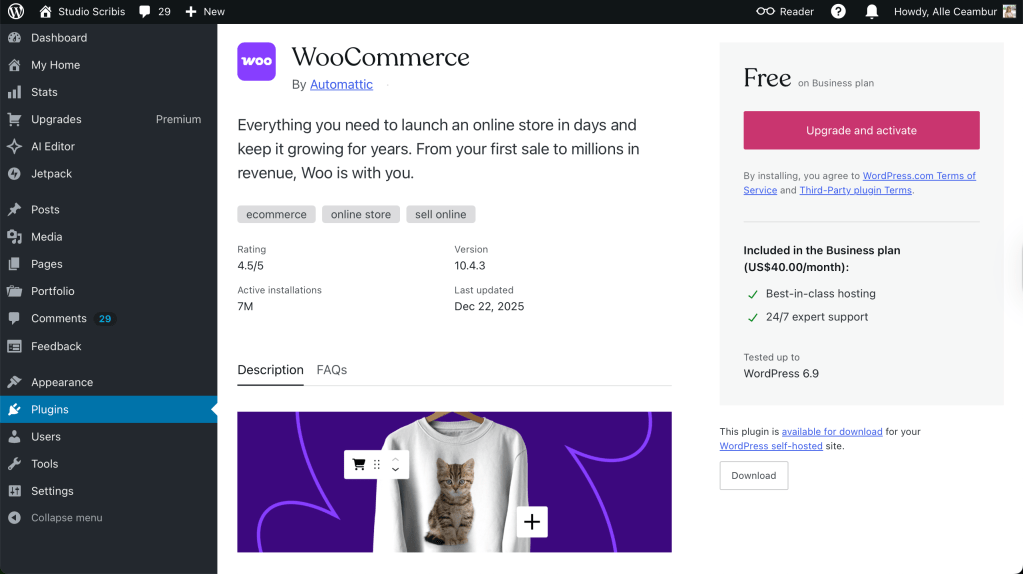
Note: WooCommerce runs directly on WordPress.com, you don’t need a separate profile.
You just need to upgrade your plan to Business and click on the button to activate it.
Step 3: Add your products
Before adding products, get clear on the things you want to sell on your website. Here are some ideas for products to sell if you’re a content creator:
- a digital guide or ebook
- templates or downloadable resources
- a course or workshop
- a paid membership
- a paid newsletter
- a book club membership
- gated content or a white-paper report
Tip #1: Start with one product category, and you can always expand into more offers later.
Tip #2: If you’re selling a digital product, you will need to upload the file, and mark it as downloadable.
Tip #3: Think about your funnel. How will people discover your offer?
From my personal experience, offering free downloads that lead to a newsletter, and then to a paid course offered on your website, is a tried-and-tested method that I used to monetize my audience as a content creator.
Step 4: Choose a payment method
Once you’ve added products to your online store, the next step is configure payment methods.
The good news is that WooCommerce supports popular payment platforms like WooPayments (WooPay), Stripe, and PayPal, so you can be assure most countries and currencies are covered. This means your customers can pay using credit cards, debit cards, or digital wallets directly on your website.
From your WooCommerce settings, you can choose:
- which payment methods to enable
- set your preferred currency
- connect your bank account (or PayPal) to receive payouts
My advice if you’re selling digital products or services, is to keep payments simple as more options can be confusing. Fewer options means fewer chances of abandoned carts.
Step 5: Don’t forget about legal pages
WooCommerce automatically creates the important storefront pages for you, including:
- Your shop front page
- Checkout page
- Shopping cart
These core pages are already connected to your products, so you don’t need to build them from scratch. However, it’s recommended to add a few standard legal pages, including these:
- A Privacy Policy
- Refund or Returns Policy
- Terms and Conditions (This one is optional but recommended, because these will protect you as a seller in unforeseen circumstances)
These pages don’t need to be long or complicated. They simply explain how customer data is handled and what happens after a purchase. WordPress.com even provides templates you can edit and adapt to your needs. Make sure to check them out if you need inspiration.
Step 6: Connect content to your online store (this is where content creators shine!)
This is the part where the WordPress.com + WooCommerce combination really shines for content creators. Your blog and your store are not separate things. They actually work together, for you.
Why this is an advantage for content creators?
- You already know how to write helpful blog posts (that are SEO-optimized)
- Now you can naturally link to your products (free guides, courses) inside your content
- Turn your free articles into entry points for paid resources
Let me give you a few concrete examples you can follow:
- An email signup: leads to a membership or product page
- A blog post: links to a paid guide
- A free tutorial: promotes a paid course
- A free download: paid email list
As you can see, there are many opportunities for growing your website in 2026, you just need to be willing to explore them! And start as soon as you can. Don’t wait till next year.
Conclusion
In 2026, launching an online store doesn’t mean you’re a full-time retailer; it’s about creating a stable foundation for your creative work for years to come.
With WordPress.com and WooCommerce, creators can confidently publish content, build an audience, and sell products from one centralized place, without juggling different tools or getting caught in scattered workflows.
Starting a WordPress website is not that complicated. And if you’re already writing good-quality content, you can let SEO do the heavy lifting and attract clients for your online store.
 Studio Scribis
Leave a comment