
Learning how to find and view Instagram Insights on a desktop computer has never been easier! Get the latest 2023 tips and tricks here with this comprehensive guide!
If you run a business with an Instagram account, viewing your Instagram Insights on desktop can help you monitor trends and optimize your profile. In this guide, I’ll show you 3 different ways to view your Instagram insights on Desktop – from beginner to advanced!
Step 1: Getting Started with Instagram Analytics
To view insights for your Instagram account, you must have a business or creator profile.
Once switched to a business profile, you’ll get direct access to all of the available information and metrics about your Instagram account. To do this:
- Click on “Settings” from your Instagram profile page
- Select “Switch to Business Profile”
- You will then be prompted to connect your Instagram account with a Facebook Page in order to continue
- Done! you now have access to detailed analytics
You Can Now Open Instagram on Desktop
Here’s how to view them:
- Type https://www.instagram.com in your browser and then log into your Instagram account.
- From the menu on the left, navigate to Dashboard -> shown as a chart icon. This opens up your Instagram ad tools.
- To view your insights you need to click on Insights -> then choose Account or Content

Now you can view your insights on a desktop.
As I mentioned earlier, there are two separate insights tabs: one for account stats, and another for content stats.
Account insights
- Stats up to 90 days back
- Views (estimated) and split into Followers and Non-followers
- Interactions (a total of likes, saves, comments, replies)
- Top content based on Views and Interactions

Content insights
The content insights tab is much more simple. You only get a listing of your posts that you can filter by two main parameters:
Type of post:
- Posts
- Reels
- Stories
Metric:
- Accounts engaged
- Accounts reached
- Interactions
- Shares
- Views

That’s all. You can click on each post and view more details, but there isn’t any graphic, chart or something more to help you analyse your content performance, and for that reason, I don’t like opening Instagram’s native insights on a desktop. Feels like it’s lacking proper analytics tools that third party apps, and content management dashboards have offered for years.
You can read some in-depth reviews I have recently updated on Buffer, Later and Pallyy.
View Instagram Insights in Meta Business Suite
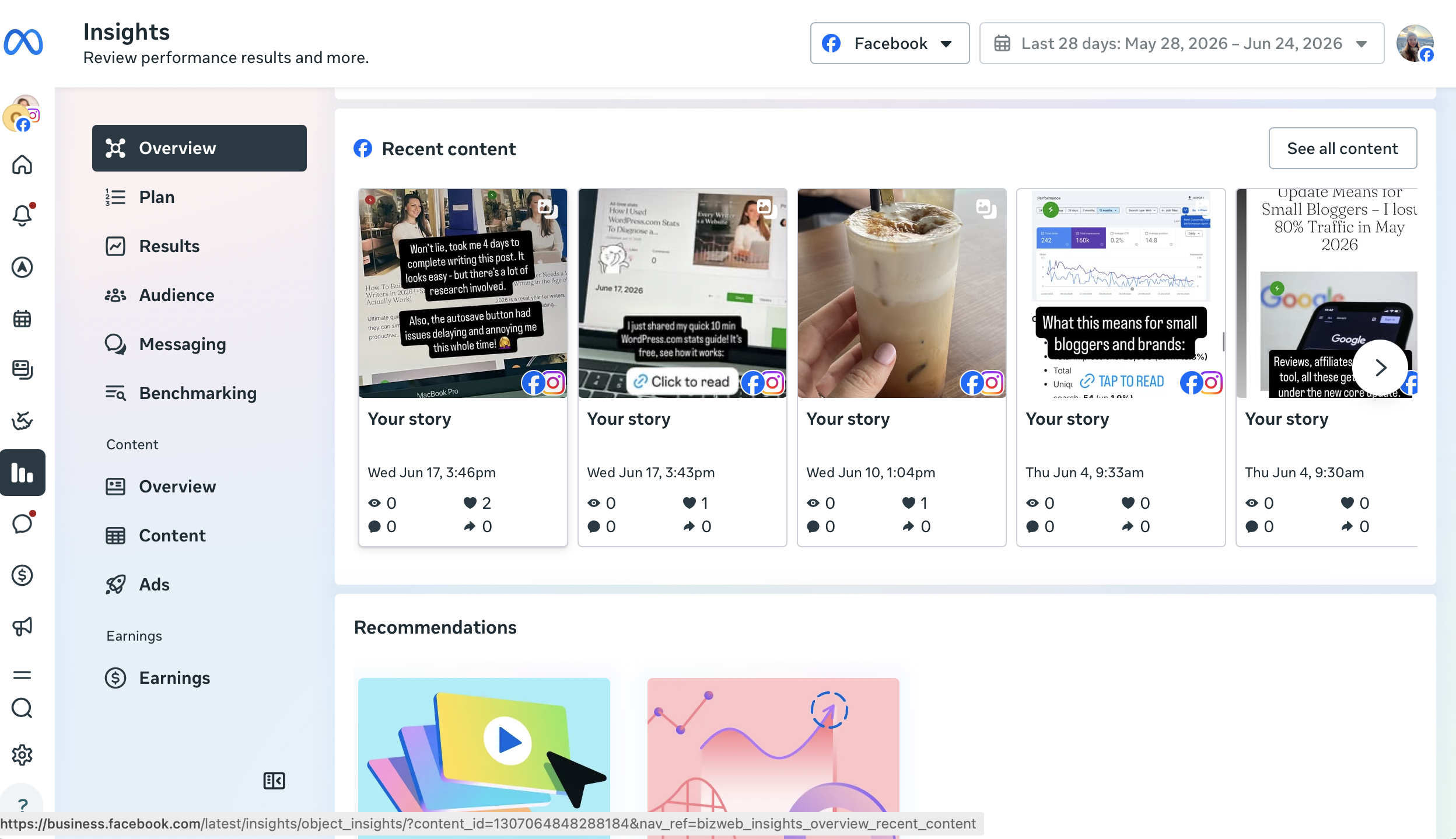
Meta Business Suite combines insights for your Facebook page and a linked Instagram page.
Some changes to the insights your can access in Meta Business Suite (MBS):
“New viewers metric for content published after July 31, 2025. Use this new metric to help better understand who sees your content across Meta technologies. The reach metric will no longer be shown on Meta Business Suite, but you can still find it in Ads Manager.“
I personally find it confusing to access Instagram insights this way. Unless you’re actually managing Facebook ads I’d not use this combined Facebook and Instagram stats dashboard.
Insights dashboard in MBS

What Instagram analytics can you track with MBS?
- You’ll find post level metrics such as view, interactions for recent posts (going 28 days back).
- Stats for posts, reels and stories
- Followers, how many people commented, or shared your posts on FB and Instagram
Instagram Story Stats in MBS

However, you cannot view detailed charts and export PDF reports.
For this, I recommend witching to a third-party analytics tool.
View In-Depth Trends and Insights on Desktop with Pallyy
Accessing Instagram Insights from Pallyy’s desktop dashboard is straightforward. All you need to do is log in with your Facebook account, and give the app access to your Instagram account data. From there, you’ll be directed to a dashboard page where you can find ‘Instagram Insights’ or ‘Analytics’ from the left-hand side

Instagram Followers Growth
Track your followers’ growth and see which content helped you gain and lose followers. You can look for spikes and drips and correlate them with your posting strategy.

Competitors Insights
You can connect your competitor profiles, and track their followers growth, their most popular content and strategy (posts per day, hashtags per post)

Instagram Stories Insights
Top Posts/Stories insights shows you a list of individual posts, which you can rank by a list of metrics (likes, comments, engagement rate, reach, impressions, etc.). This is a great way to ensure that your content is tailored to your audience’s preferences and interests

Instagram stats you can track with Pallyy:
- Analyze your audience demographics for strategic placement of content
- Understand your top posts and most engaged topics over time
- Identify your top hashtags for engagement & reach (also your worst hashtags for engagement)
- Find your top post formats for likes, comments, etc.
- Track your Instagram competitors and learn their exact posting strategy (how often tehy post, what hashtags they use, what content format works for them)
- Repost and cross-share your most engaged content on different social media platforms for more views
- Create your own custom Instagram analytics reports, by adding charts, and stats for a consistent monthly tracking exercise
- Download your analytics PDF reports or send them to a client via a URL Link
Learn: How to use Pallyy to schedule social media posts.
Conclusion
In this post I showed you 3 ways to view your Instagram insights from a desktop: using Instagram native insights, the combined Meta Business Studio, and a using Pallyy – a social media management dashboard. Over the years, tracking analytics has helped me strategically publish content at best times, and in a better format, suited for my audience. This keeps leading to better results in the long run.
If you haven’t tried analyzing your Instagram by looking at stats, it’s worth a try! Just keep in mind that you need to have an Instagram business profile (it’s easy to make the switch in Settings) linked with a Facebook page in order to have access to analytics.
Then have fun with it! You can just look at basics, or you can go pro by analyzing stats and charts with a professional dashboard. It’s all up to you.
Leave a Reply